iOS automation: update wallpaper automatically
This guide shows how to set up a Shortcut on your iPhone so your calendar wallpaper updates on its own—for example every morning or when you open an app.
1. Create the shortcut (wallpaper update)
First, create a shortcut that fetches your calendar image from DayWall and sets it as Lock Screen wallpaper. Do this in the Shortcuts tab (not Automation yet).
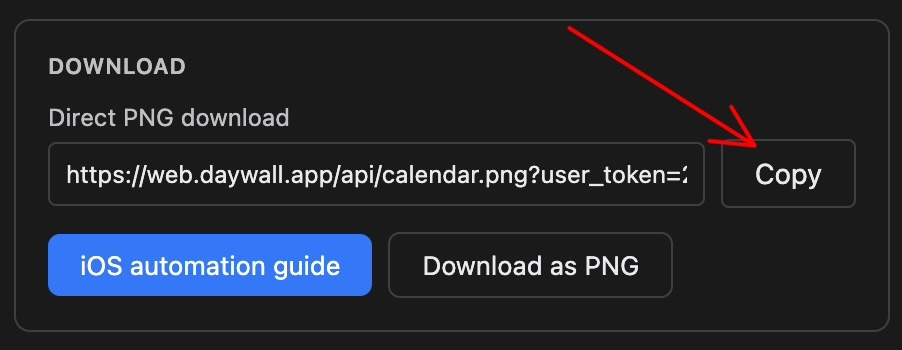
- On the DayWall site, sign in and open the Download section. Copy the Direct PNG download link (the long URL in the box). This link is unique to you—keep it private.
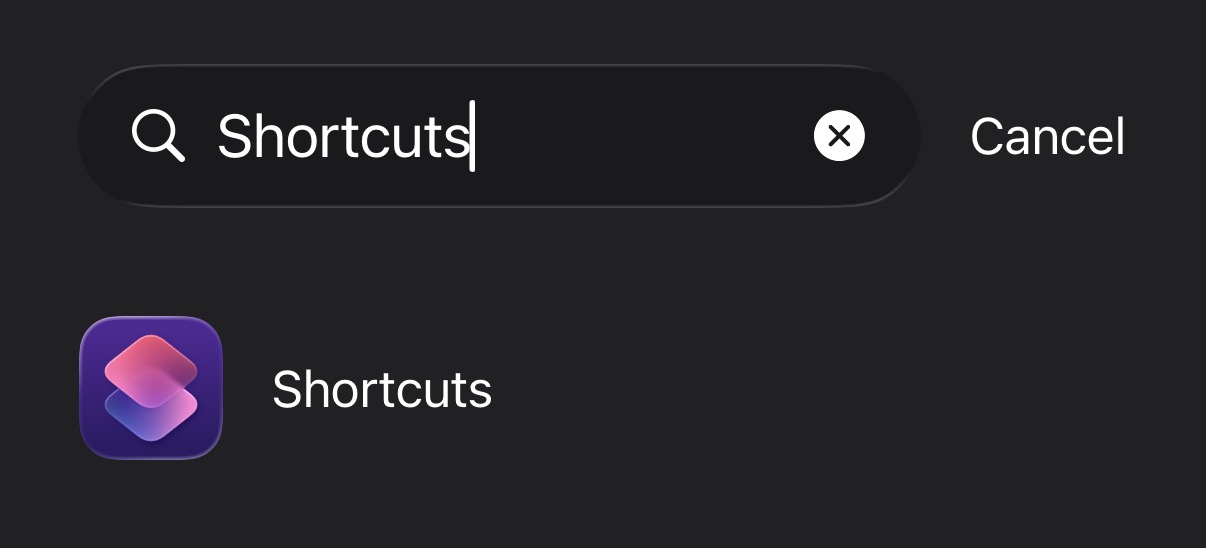
- On your iPhone, open the Shortcuts app (purple icon). Make sure you're on the Shortcuts tab at the bottom.
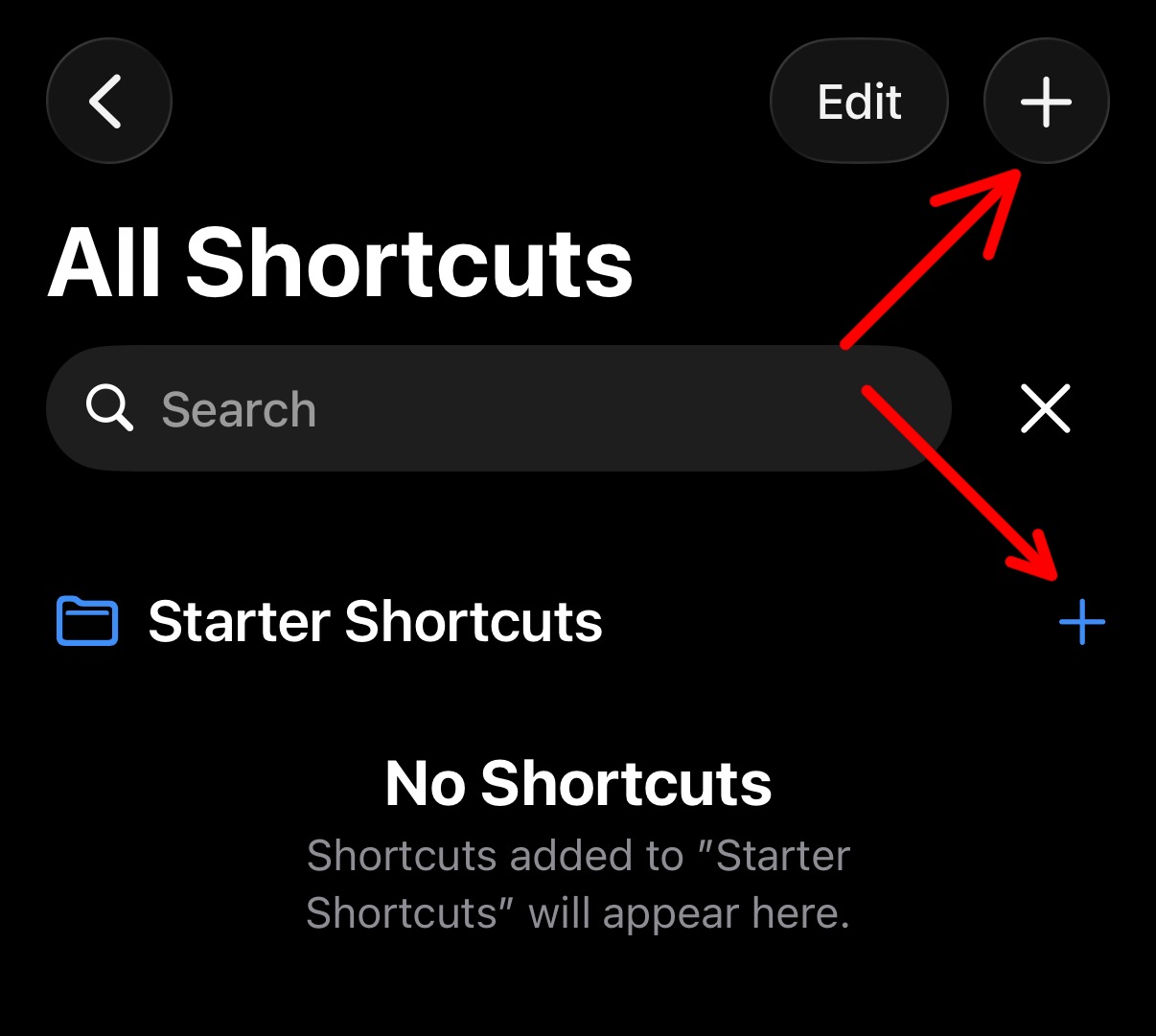
- Tap + to create a new shortcut.
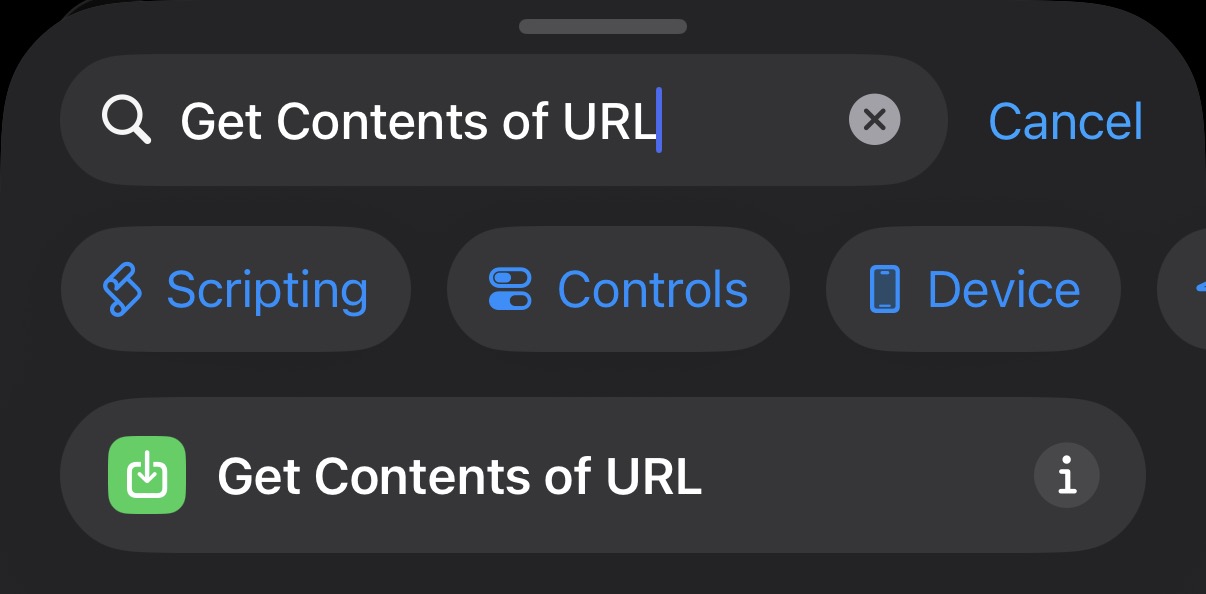
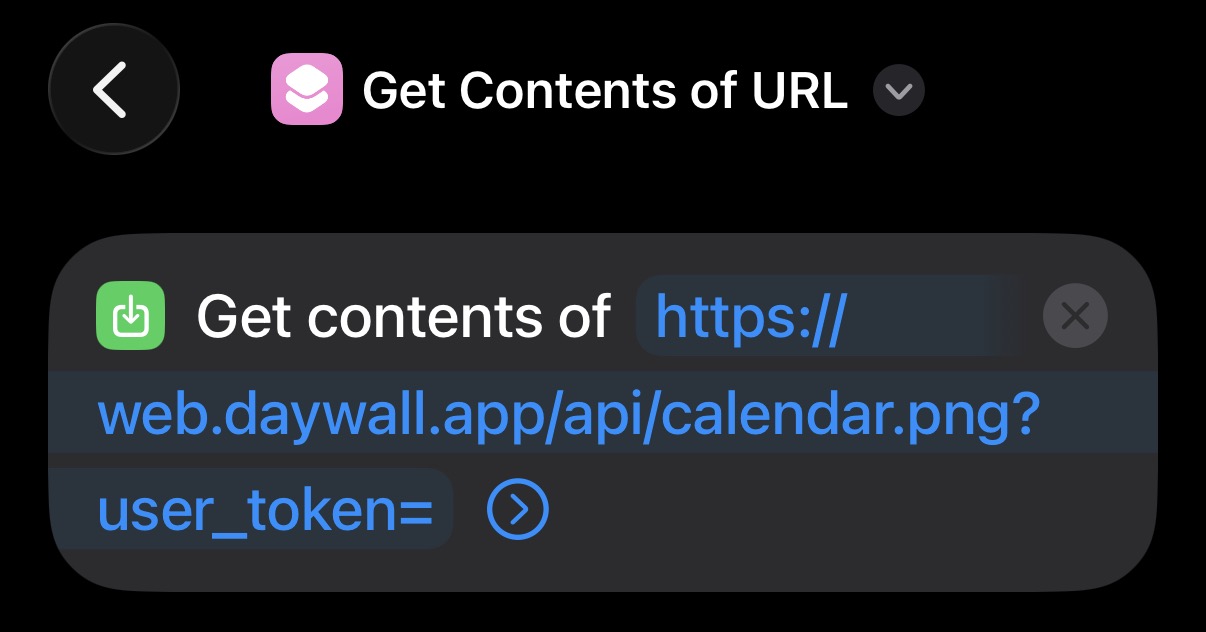
- Add an action: search for Get Contents of URL and add it.
- Paste your Direct PNG link into the URL field.
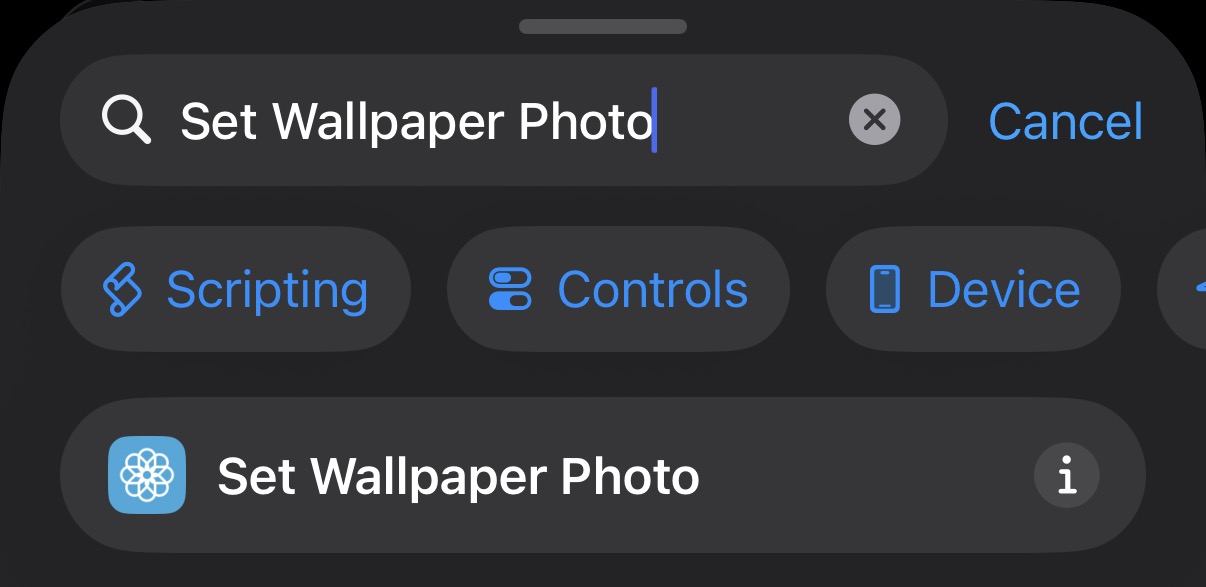
- Add another action: search for Set Wallpaper (or Set Wallpaper Photo) and add it. It will use the result from the previous step (the image from the URL) as the wallpaper.
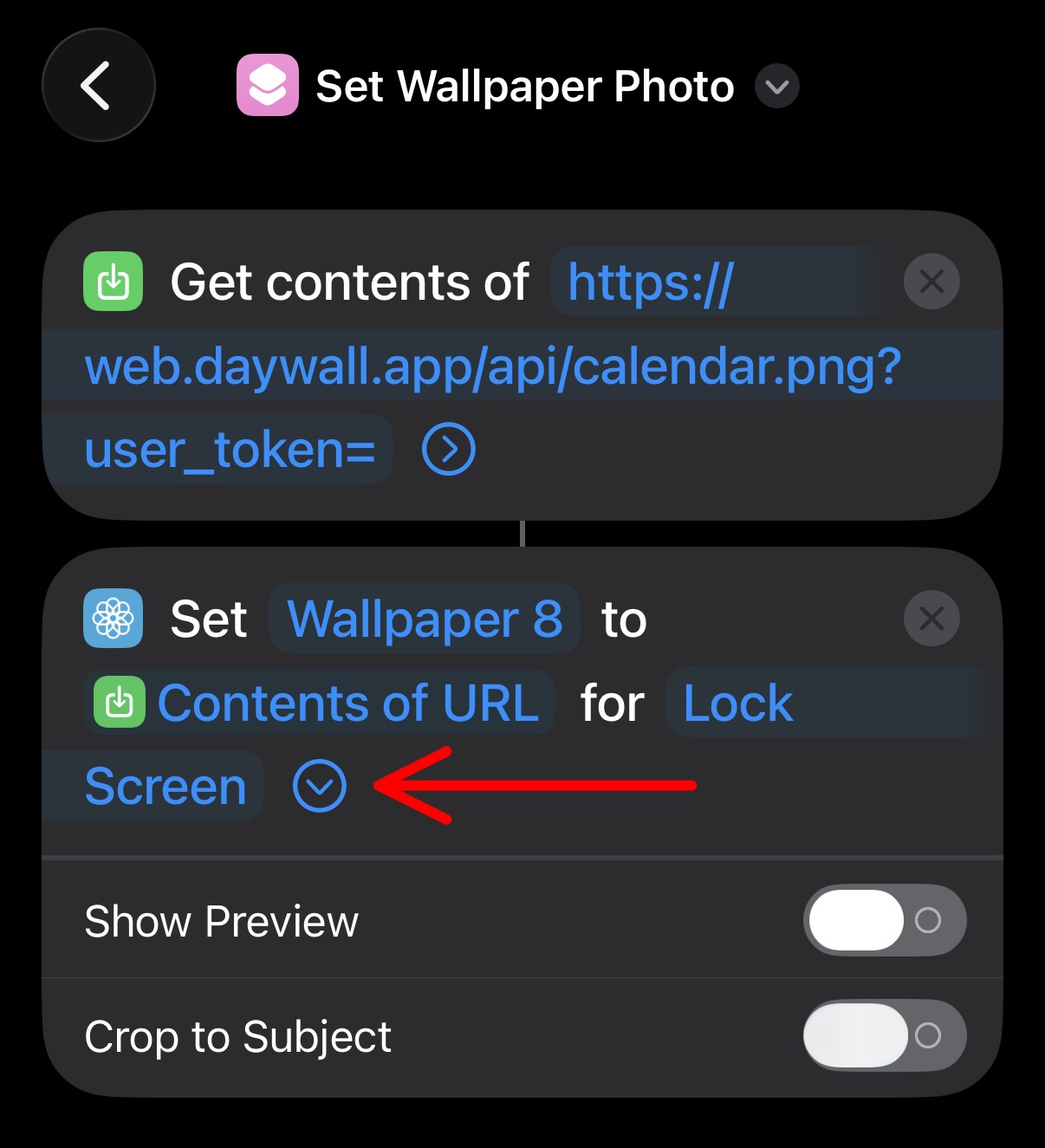
- Configure Set Wallpaper: turn Home Screen off, turn Show Preview off, turn Crop to Subject off. Leave Lock Screen on (or set as you like).
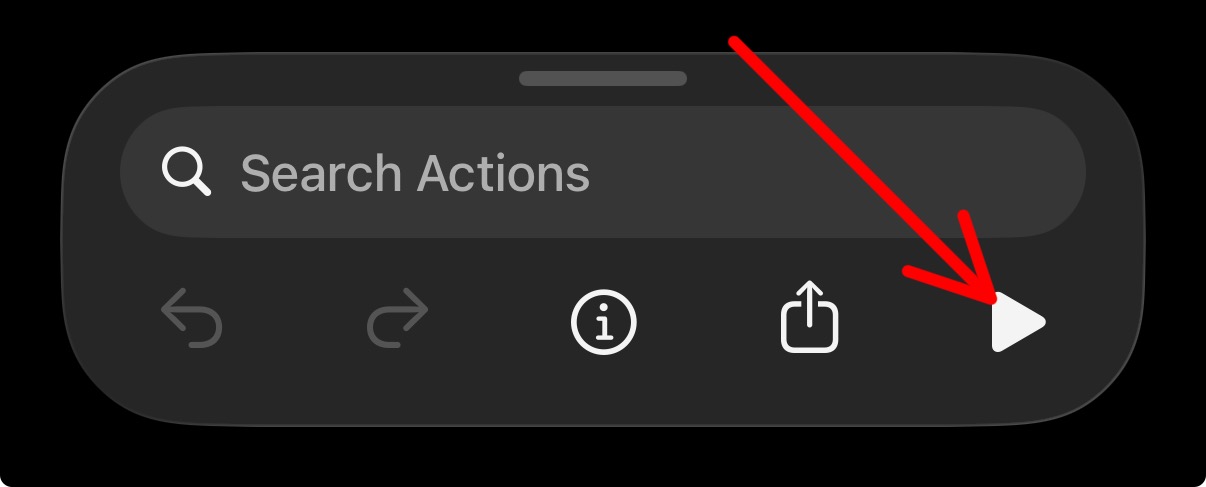
- Run the shortcut once (tap the play button) to test and to save it. Name the shortcut (e.g. "Update DayWall") and save.
2. Set up the trigger (Automation tab)
Open the Shortcuts app, then switch to the Automation tab at the bottom.
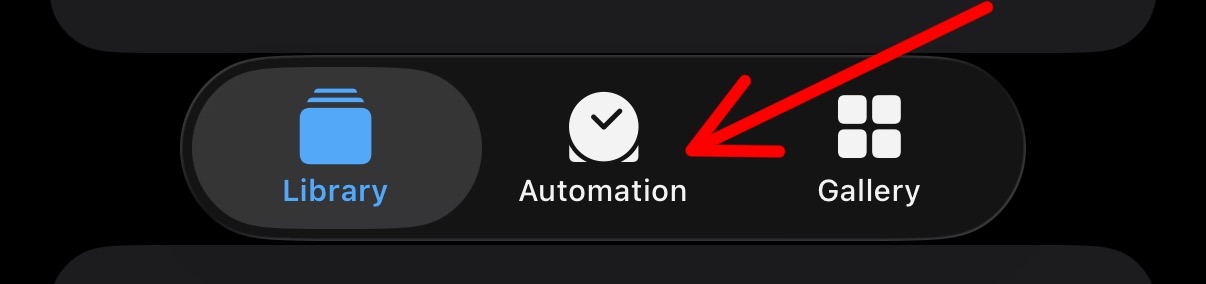
Tap + → Create Personal Automation.
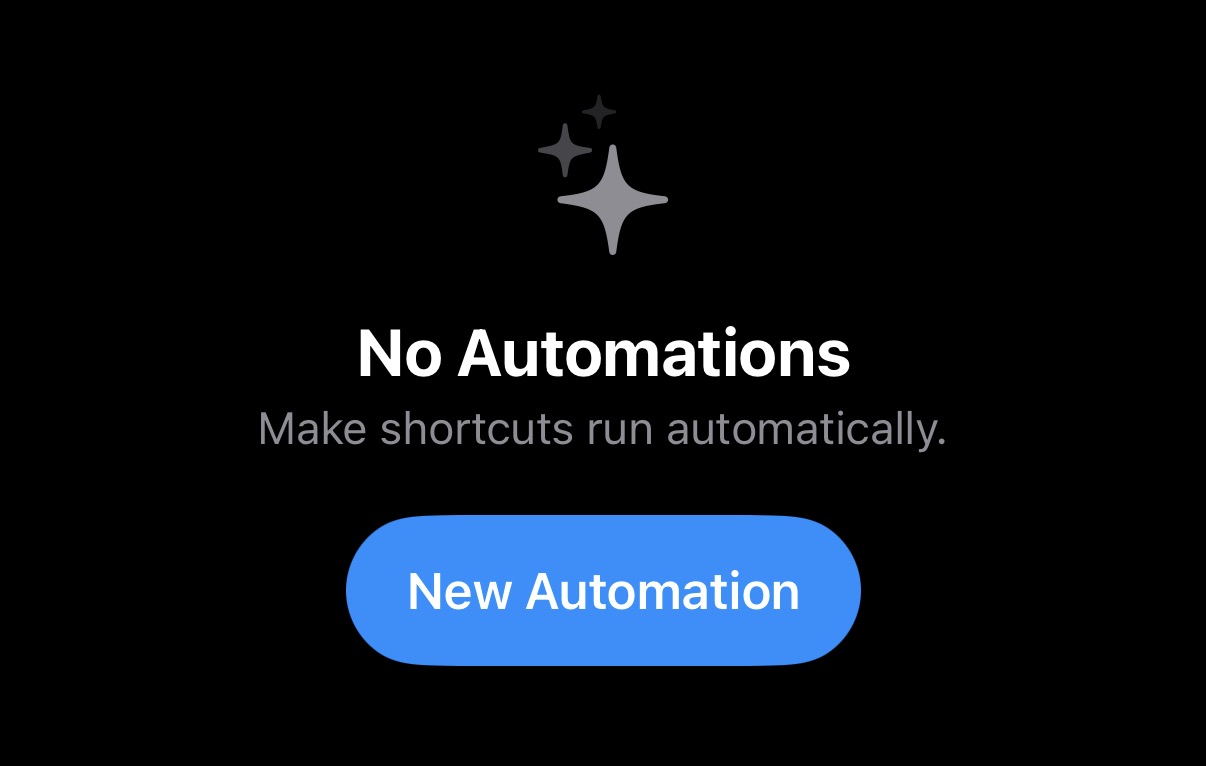
Choose either time or app as the trigger:
Trigger by time
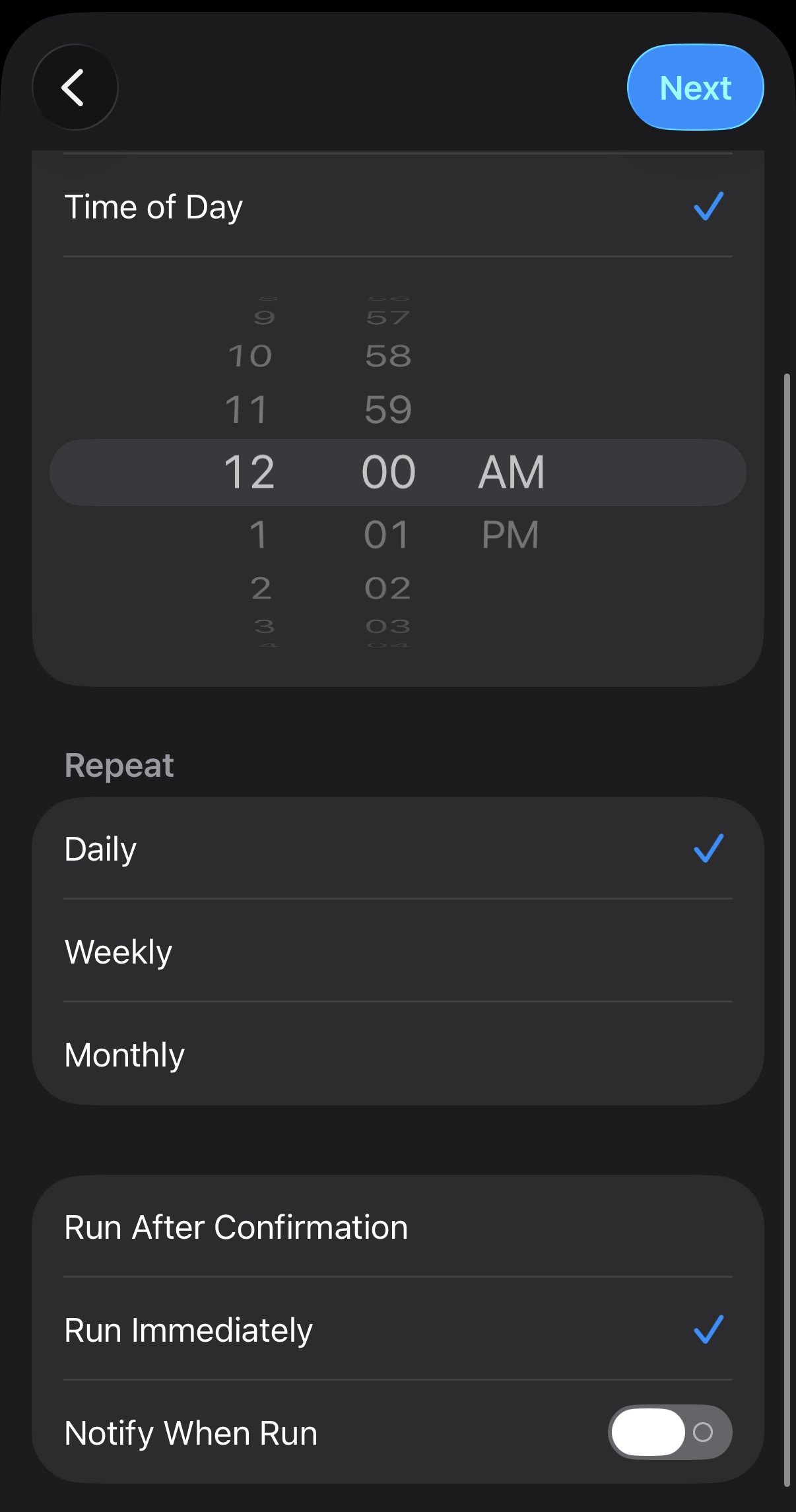
Run at a set time (e.g. 7:00 every morning).
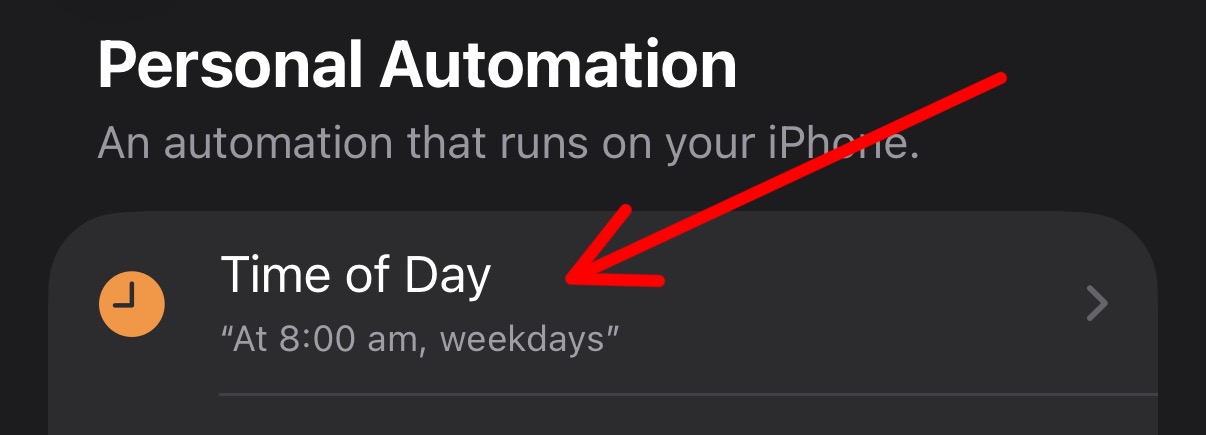
- Choose Time of Day. Set time and repeat (e.g. Daily). Tap Next.
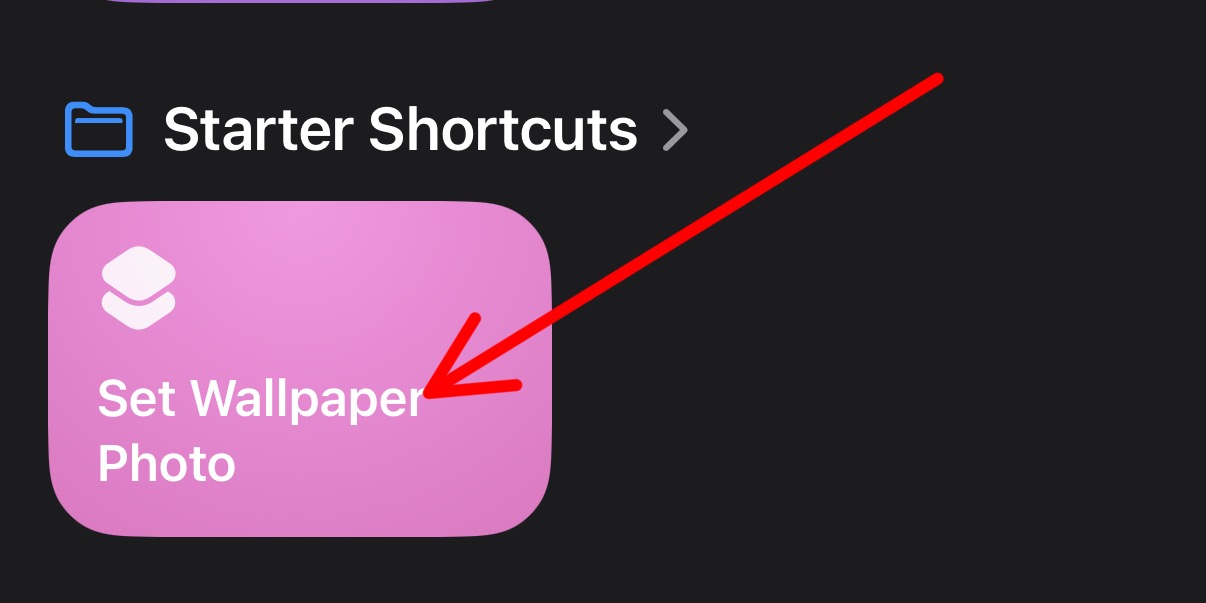
- Add action → Run Shortcut → select the shortcut you created (e.g. "Update DayWall").
- Tap Next, turn Ask Before Running off (see section 3). Tap Done.
Trigger by app
Run when you open an app (e.g. Photos or Home).
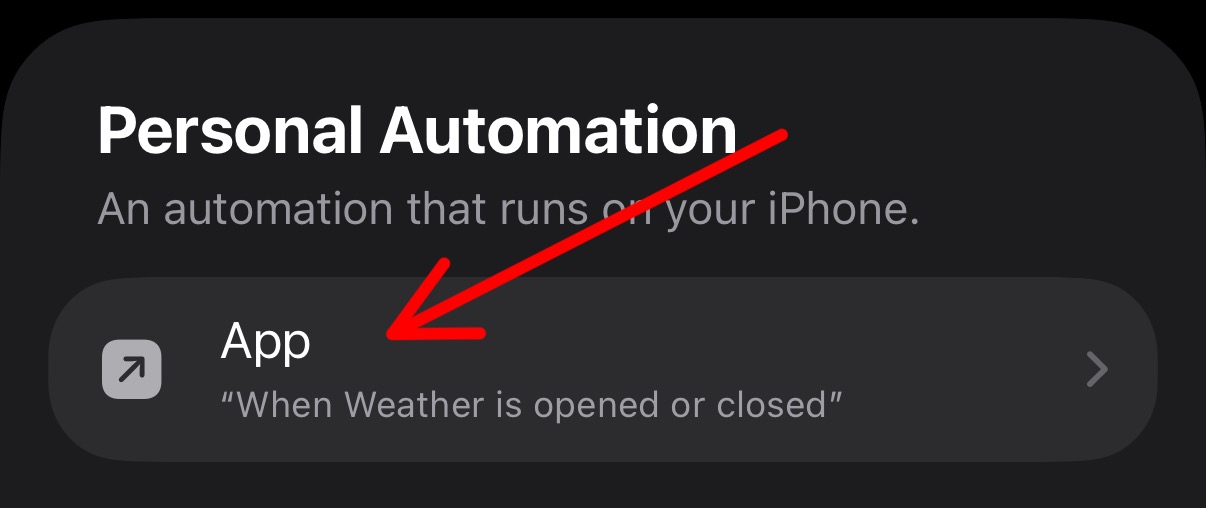
- Choose App. Select the app. Choose Is Opened. Tap Next.
- Add action → Run Shortcut → select the shortcut you created.
- Tap Next, turn Ask Before Running off (section 3). Tap Done.
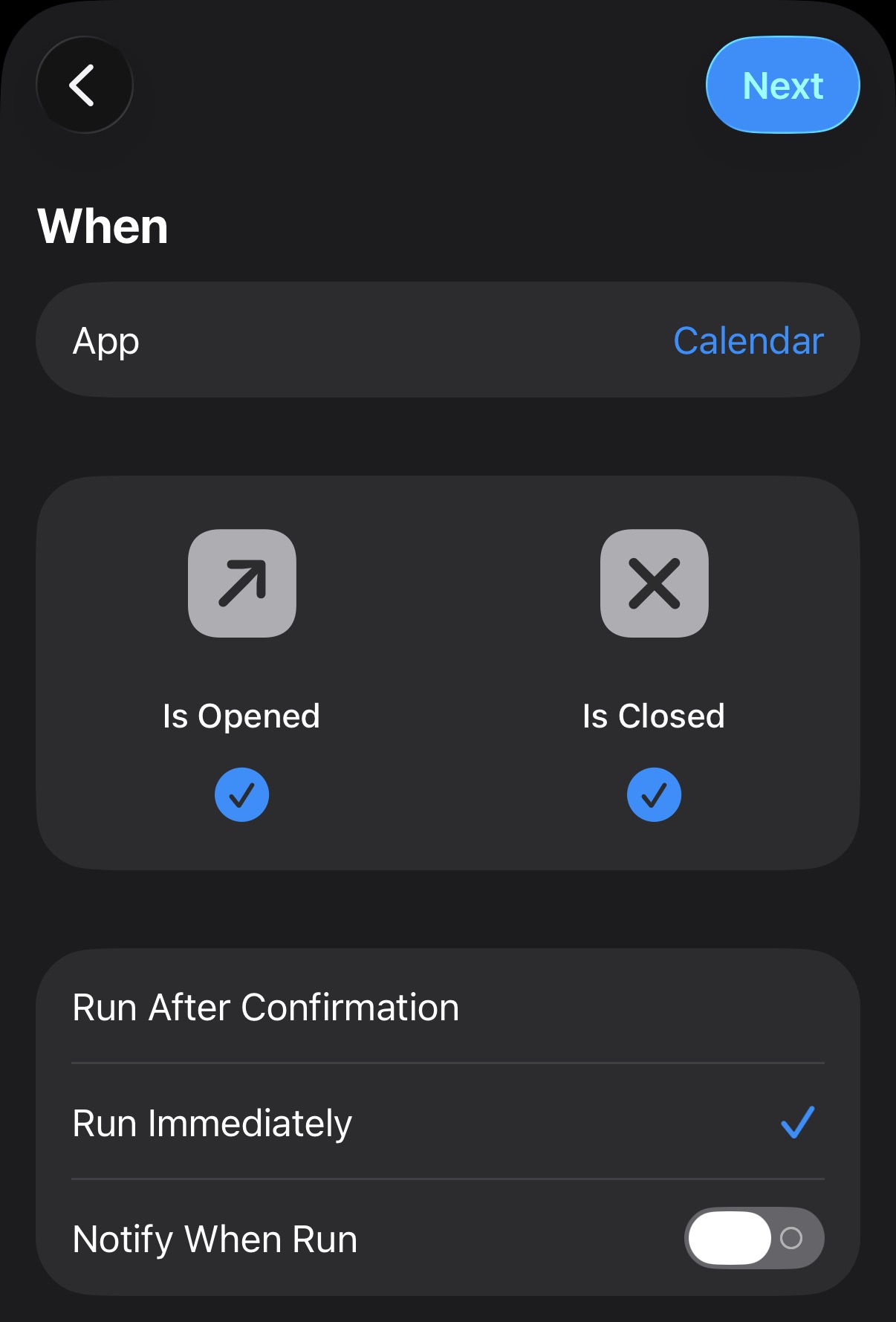
Select the shortcut you created (e.g. "Update DayWall") in the Run Shortcut action.
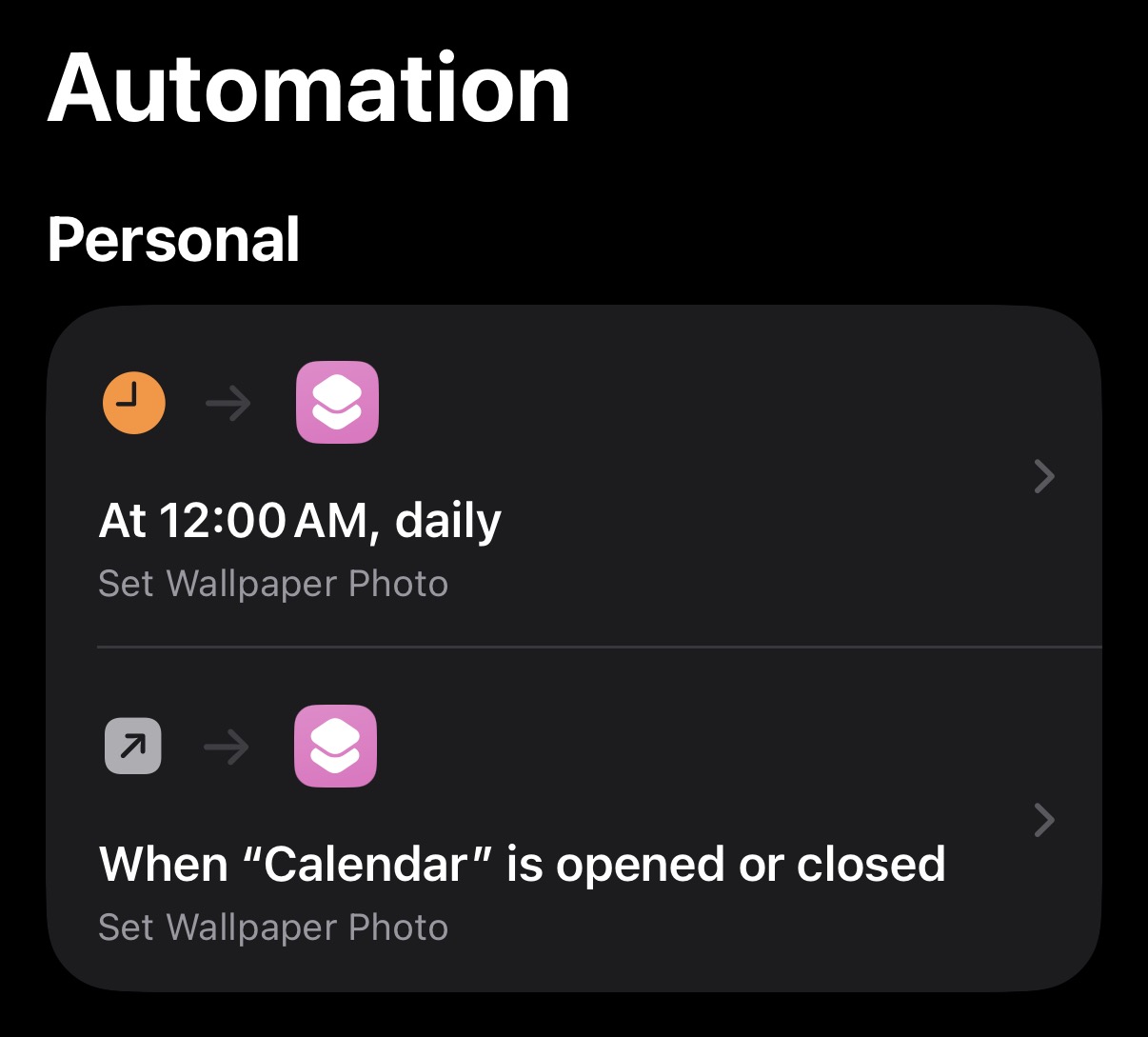
Save the automation (tap Done).
3. Run without asking every time
When creating the automation, turn Ask Before Running off so the wallpaper updates without a confirmation dialog. Tap Next after adding the Run Shortcut action, then switch the toggle off and tap Done.
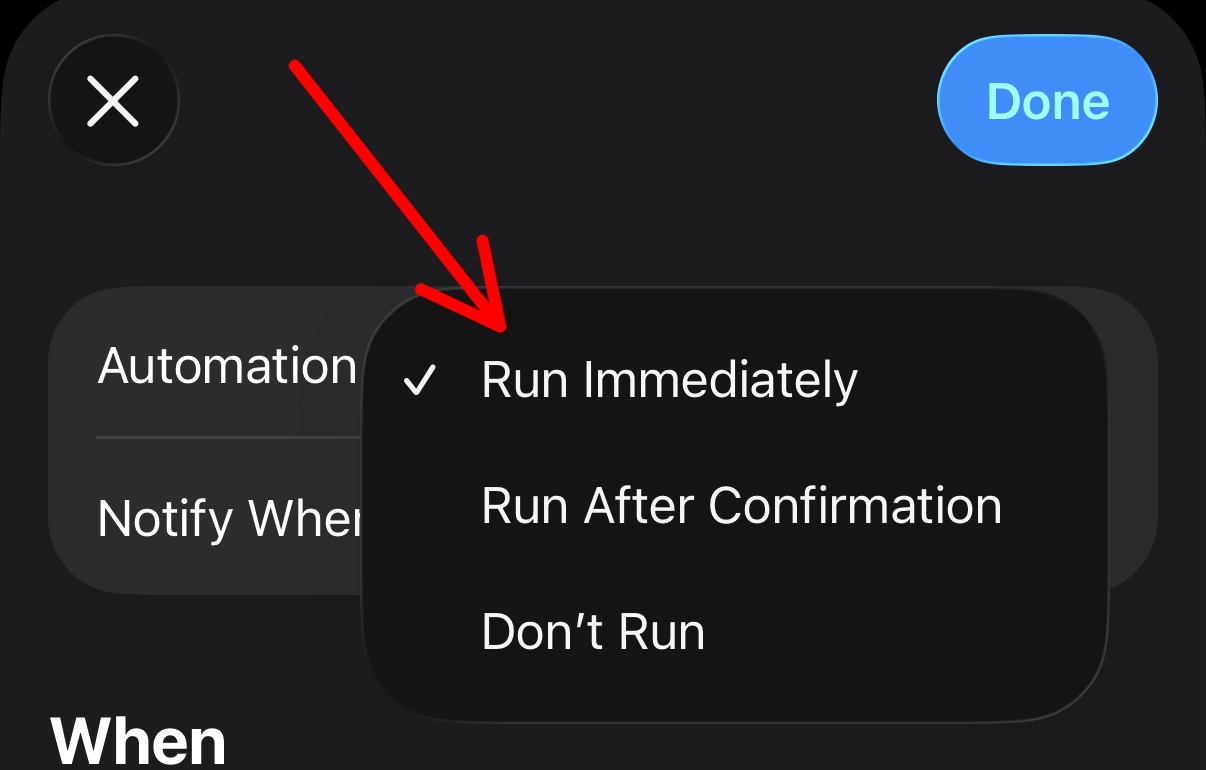
Save and you're done. The automation will run your shortcut on the trigger you chose (time or app), and your Lock Screen wallpaper will update with the latest calendar image.